
The previous article explained why Access 26.07 is a teardown and rebuild, and why aXs exists. This one is the part that was missing: the actual walkthrough. Every screenshot below is from one real lab run on July 30 — configure, deploy, first login, and a deliberate reconfiguration of the live cluster at the end, because that last part is where the tool earns its keep.

The short version of what you are about to see: ./axs configure -c lab walks eight pages and writes one config file. ./axs deploy -c lab asks for two passwords and runs nine phases unattended — in this run, 1 hour 52 on the wall clock from empty vCenter to a tenant answering HTTP 200. And when I changed the operational settings after the cluster was live and ran deploy again, aXs rewrote profile.yml and re-ran exactly one phase — the one that rolls it out — in 22 minutes, without touching anything else.
Everything runs from the operator’s machine (here: an Ubuntu box in the DMZ). aXs never enters the cluster; it drives vCenter and the bootstrap node from outside.
Four files staged under input/, and an environment that already exists — vCenter with capacity for six VMs, static IPs and DNS records for every node, <tenant>.<domain> resolving to a load balancer that is standing before the deploy. aXs checks all of the file part for you on the very first page, so there is no need to memorize the list. The one thing worth deciding early: the certificate. It has to cover the tenant FQDN and every access node FQDN — and page 2 of the dialog will print the exact list for your names before you order anything.
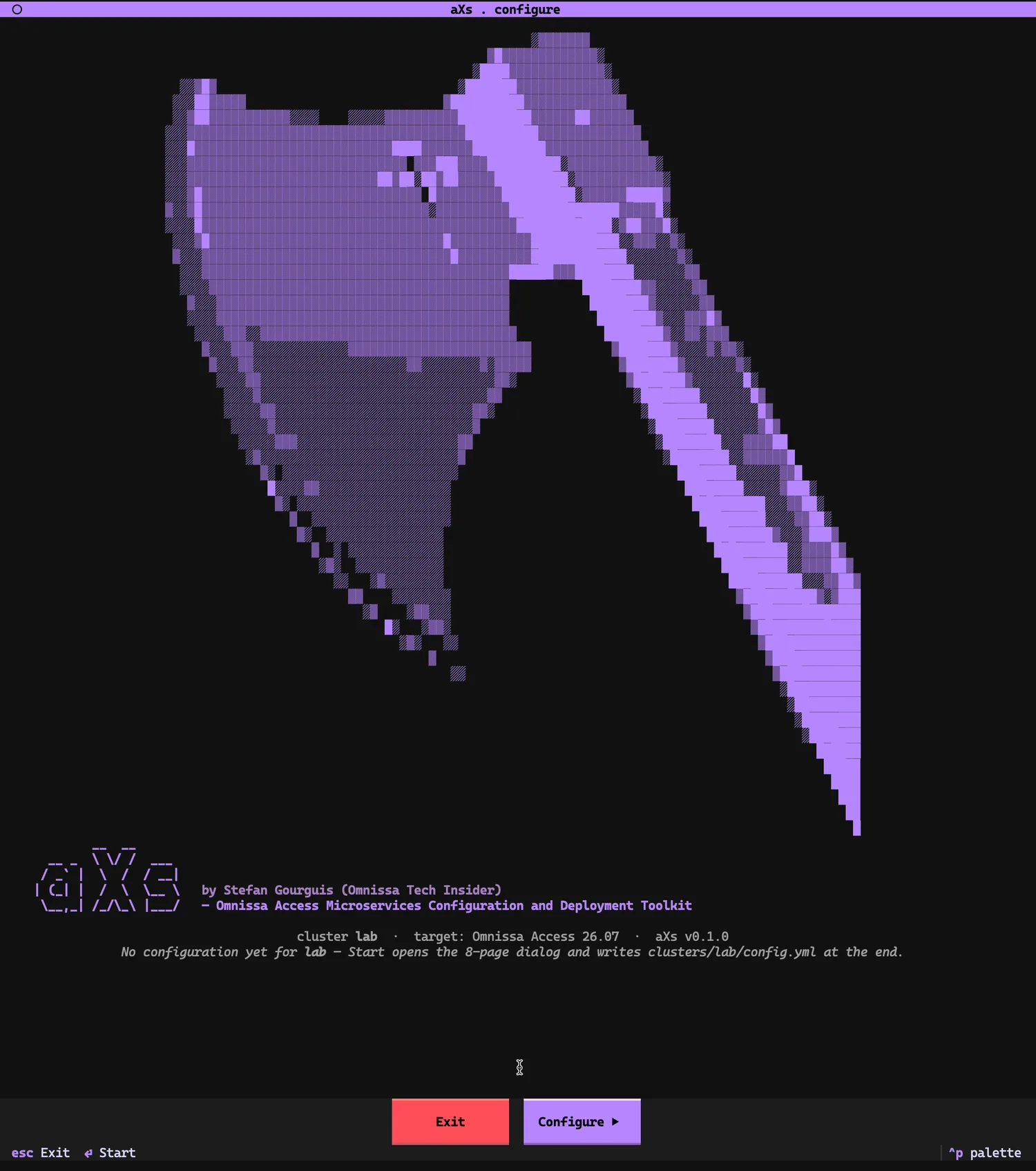
axs configure: eight pages, one file./axs configure -c lab-c lab names the local folder under clusters/ where the config will live. On first start, the splash tells you exactly what is about to happen: no configuration exists yet for lab, and Start opens the 8-page dialog that writes clusters/lab/config.yml at the end. Nothing is written before you have seen the final validation.
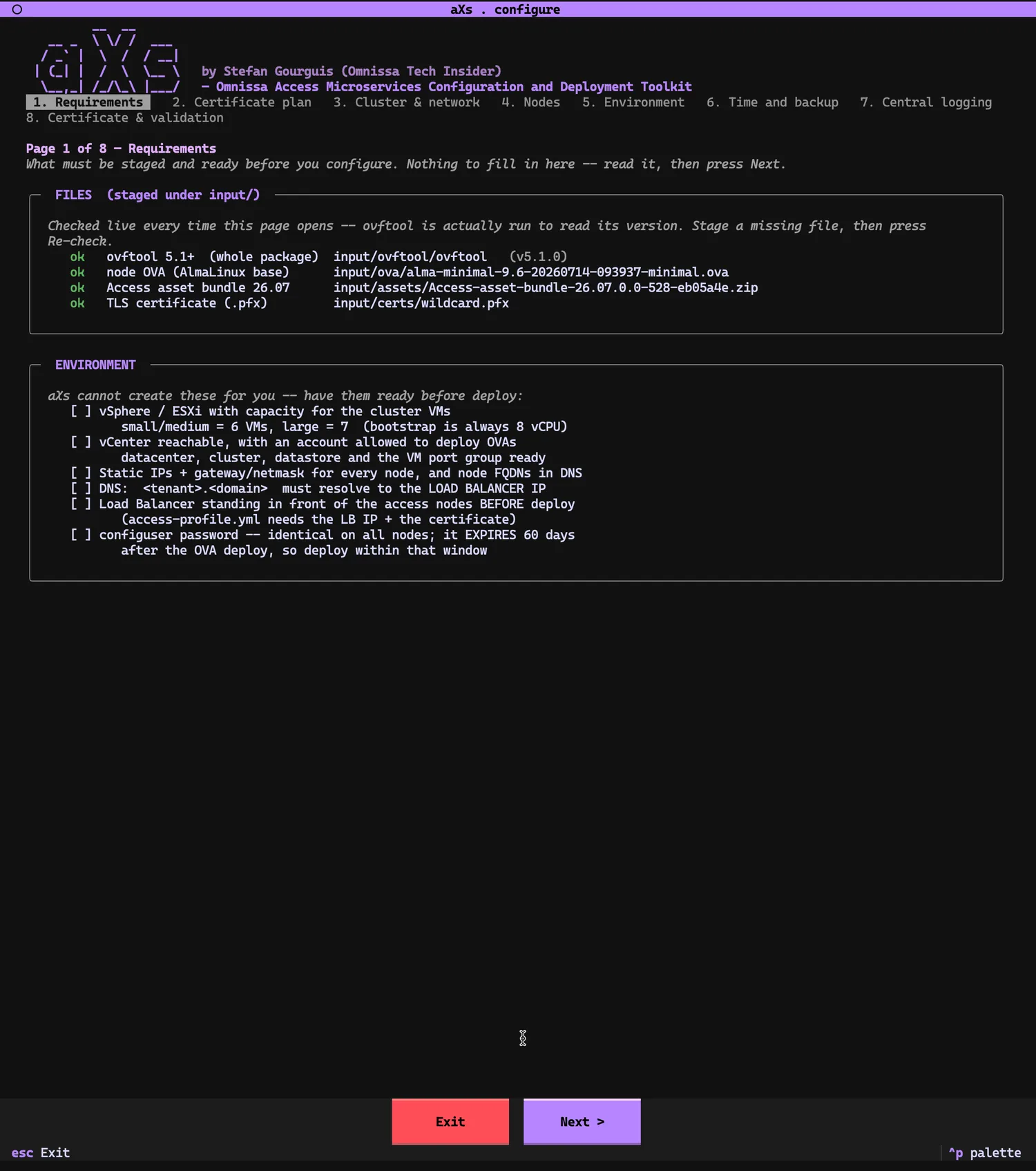
lab — the dialog will create it.Nothing to fill in here, and that is the point. The FILES box is checked live every time the page opens — ovftool is actually executed to read its version (v5.1.0 here), and the OVA, the 26.07 asset bundle and the PFX are verified on disk. If something is missing, you stage it and press Re-check; the dialog will not move on without it. Below that, the ENVIRONMENT checklist: the things aXs cannot create for you, including the one with a clock attached — the configuser password expires 60 days after the OVA deployment, so deploy inside that window.
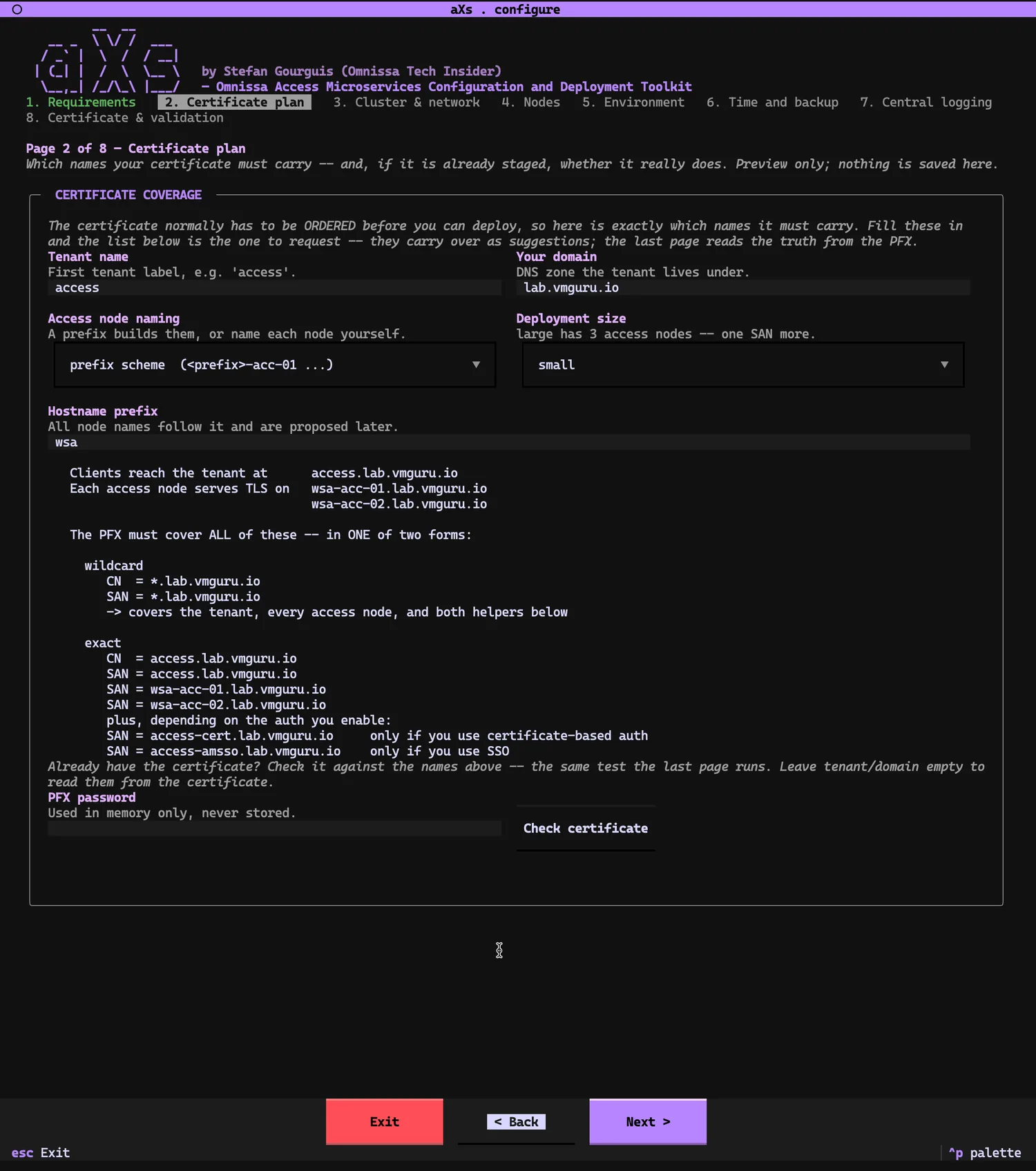
This page solves the chicken-and-egg problem of the certificate: you normally have to order it before you can deploy, so aXs computes exactly which names it must carry from four inputs — tenant name, domain, node naming scheme, deployment size. With tenant access, domain lab.vmguru.io, prefix wsa and size small, the requirement is printed in both acceptable forms: a wildcard (CN/SAN = *.lab.vmguru.io, covering one level) or exact SANs for the tenant and each access node — plus two conditional SANs, access-cert.<domain> only if you use certificate-based auth and access-amsso.<domain> only if you use Mobile SSO. Already have the PFX? Enter its password and press Check certificate — the same test the last page runs.
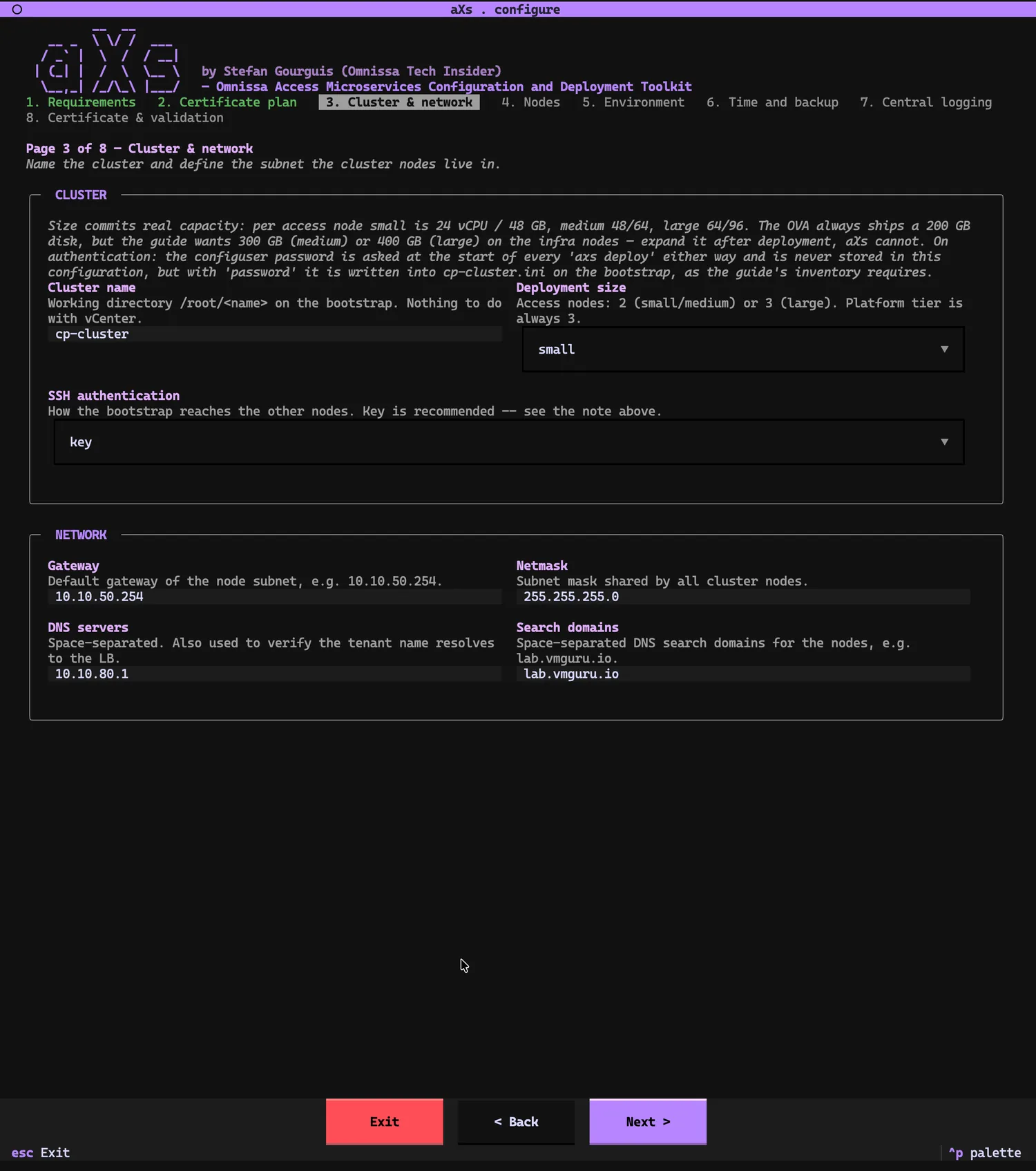
The cluster name (cp-cluster) is the working directory /root/<name> on the bootstrap — nothing to do with vCenter. Deployment size commits real capacity (small: 24 vCPU / 48 GB per access node; the header also reminds you the OVA always ships a 200 GB disk that medium/large infra nodes need expanded after deployment). SSH authentication between bootstrap and nodes is key here — recommended, because with password the configuser password lands in cp-cluster.ini on the bootstrap, as the vendor’s inventory format requires. Below: gateway, netmask, DNS servers and search domain for the node subnet.
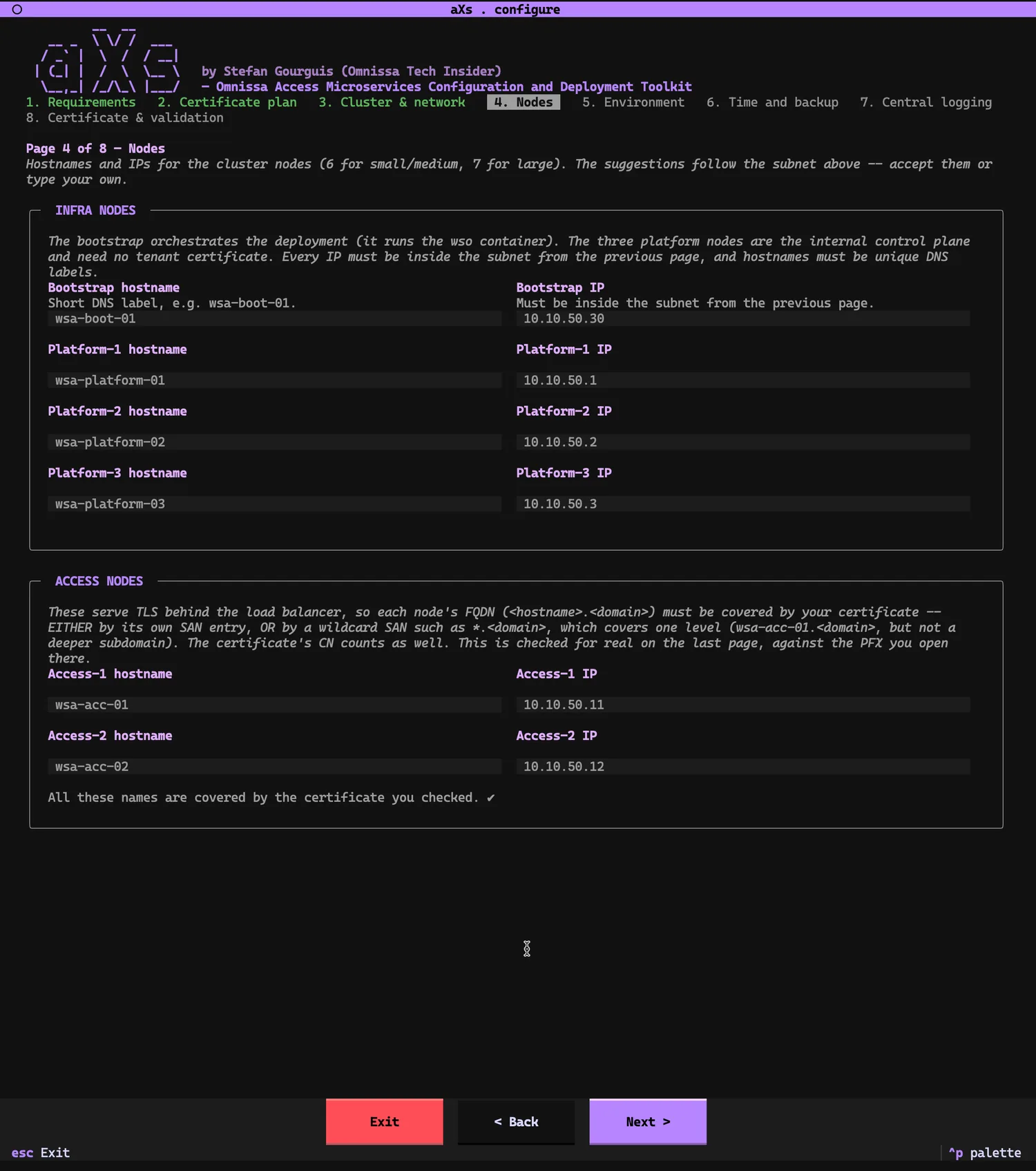
Six machines for a small deployment: the bootstrap (which orchestrates and runs the wso container), three platform nodes (the internal control plane — no tenant certificate needed), and two access nodes that serve TLS behind the load balancer. aXs proposes hostnames and IPs following your prefix and subnet; accept or overwrite. The line at the bottom is doing real work: every access-node FQDN has already been checked against the certificate from page 2.
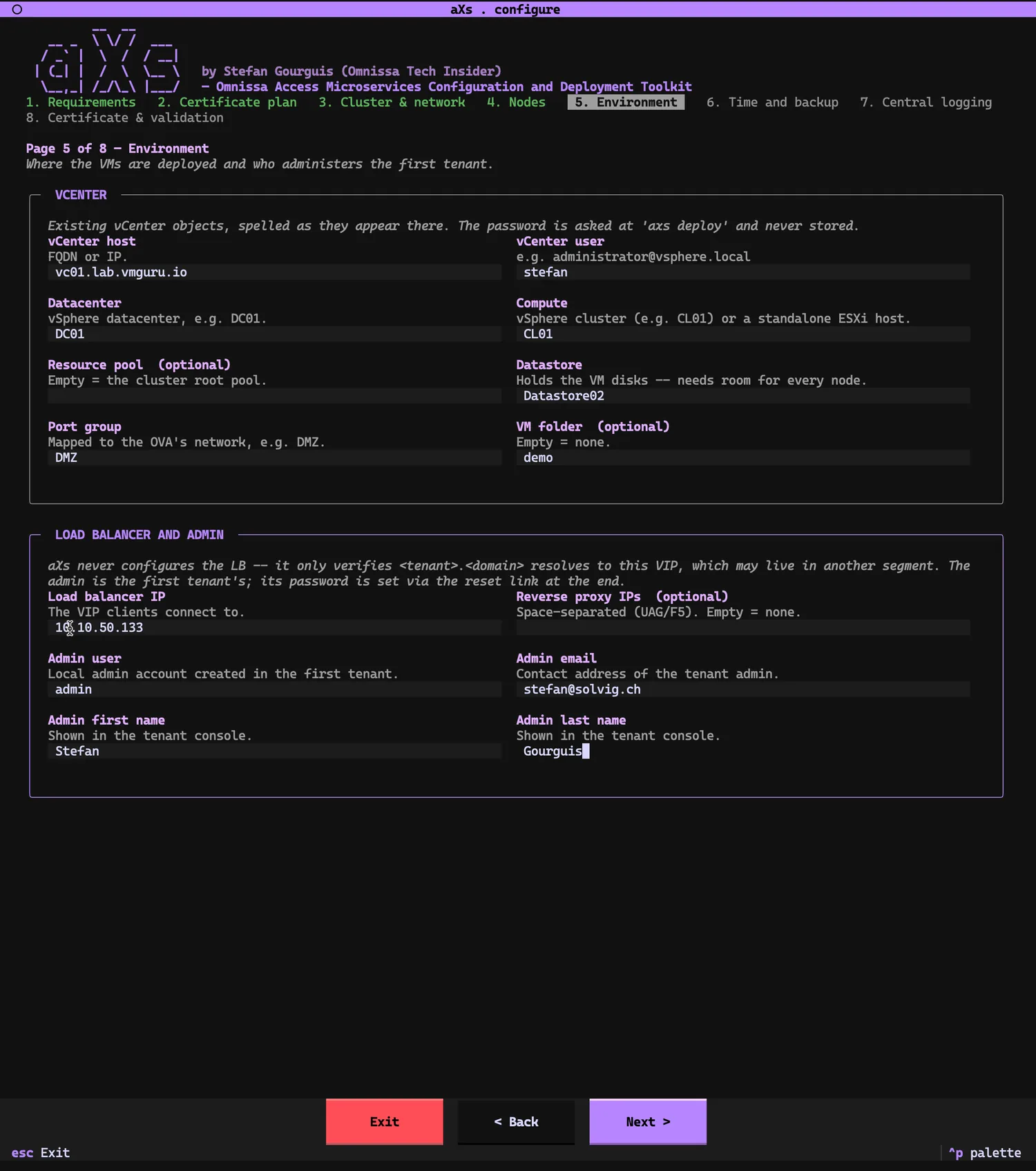
Where the VMs land and who administers the first tenant. vCenter objects are spelled exactly as they appear in vCenter — host, datacenter, compute cluster, datastore, port group, optional resource pool and VM folder. The password is not asked here; it is asked at axs deploy and never stored. The lower box states the boundary explicitly: aXs never configures the load balancer — it only verifies that <tenant>.<domain> resolves to the VIP you enter. The admin account defined here is the first tenant’s local admin; its password is set later via the reset link, not typed into any config.
Everything on this page is optional — leave it empty and you get exactly the deployment you get today. But the header quotes Omnissa’s own words: NTP is “highly recommended” for production (Access is an identity provider; drifting clocks break SAML assertion windows and TOTP codes intermittently), and NFS “is required for disaster recovery”. Two traps are printed right on the page. First: write the NFS path plainly — the vendor’s example shows a leading colon, wso prepends one of its own, and the doubled :: fails the deploy. Second: the NFS export must let root stay root (no_root_squash) — Docker chowns volume directories, and a root-squashing export fails every service that uses the target, with no usable error in the log. If you set an NFS target, aXs mounts and write-tests it from the bootstrap before the deploy continues.
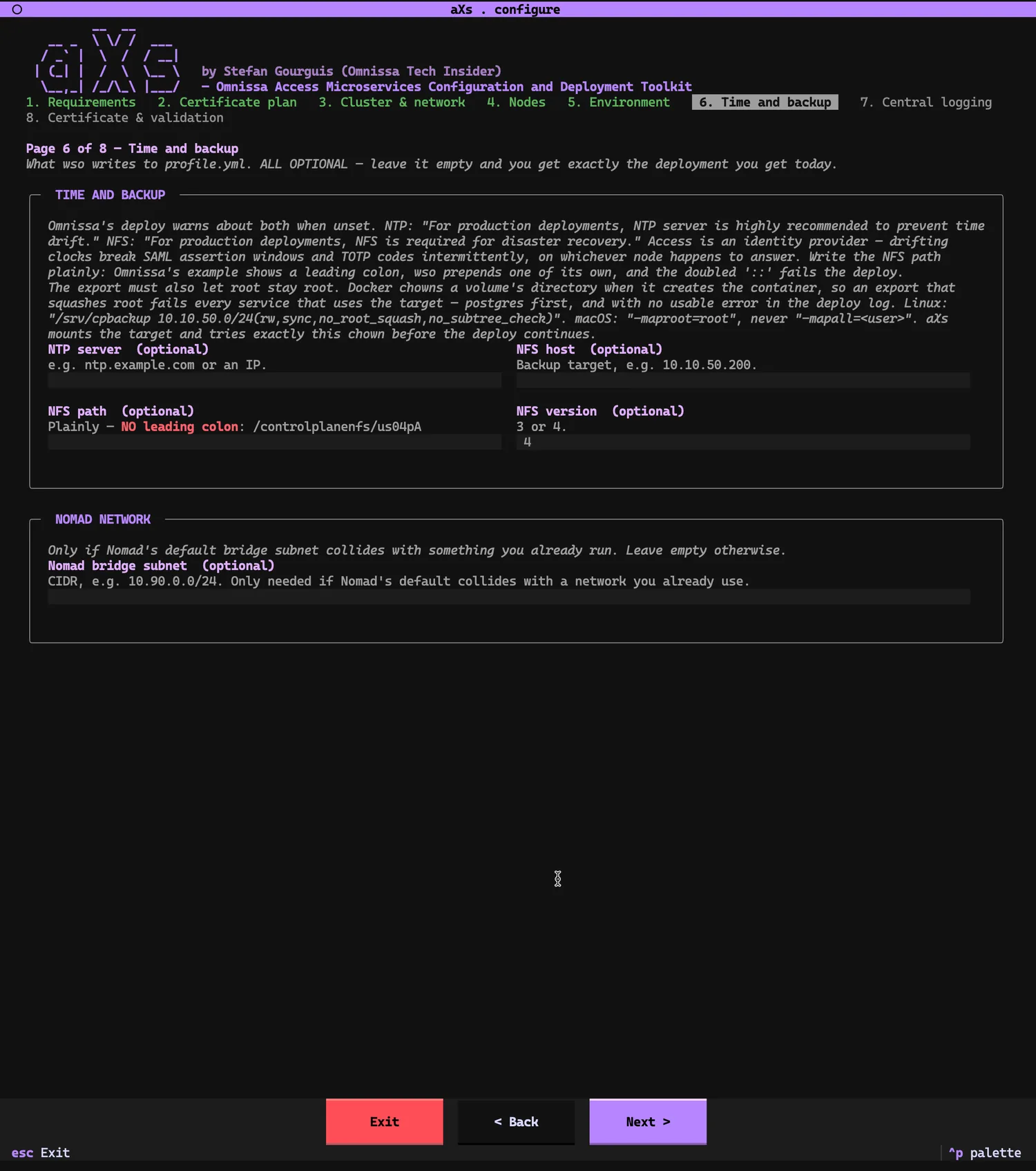
I left NTP and NFS empty on this first pass — deliberately, because the finale of this article shows what happens when you add them later.
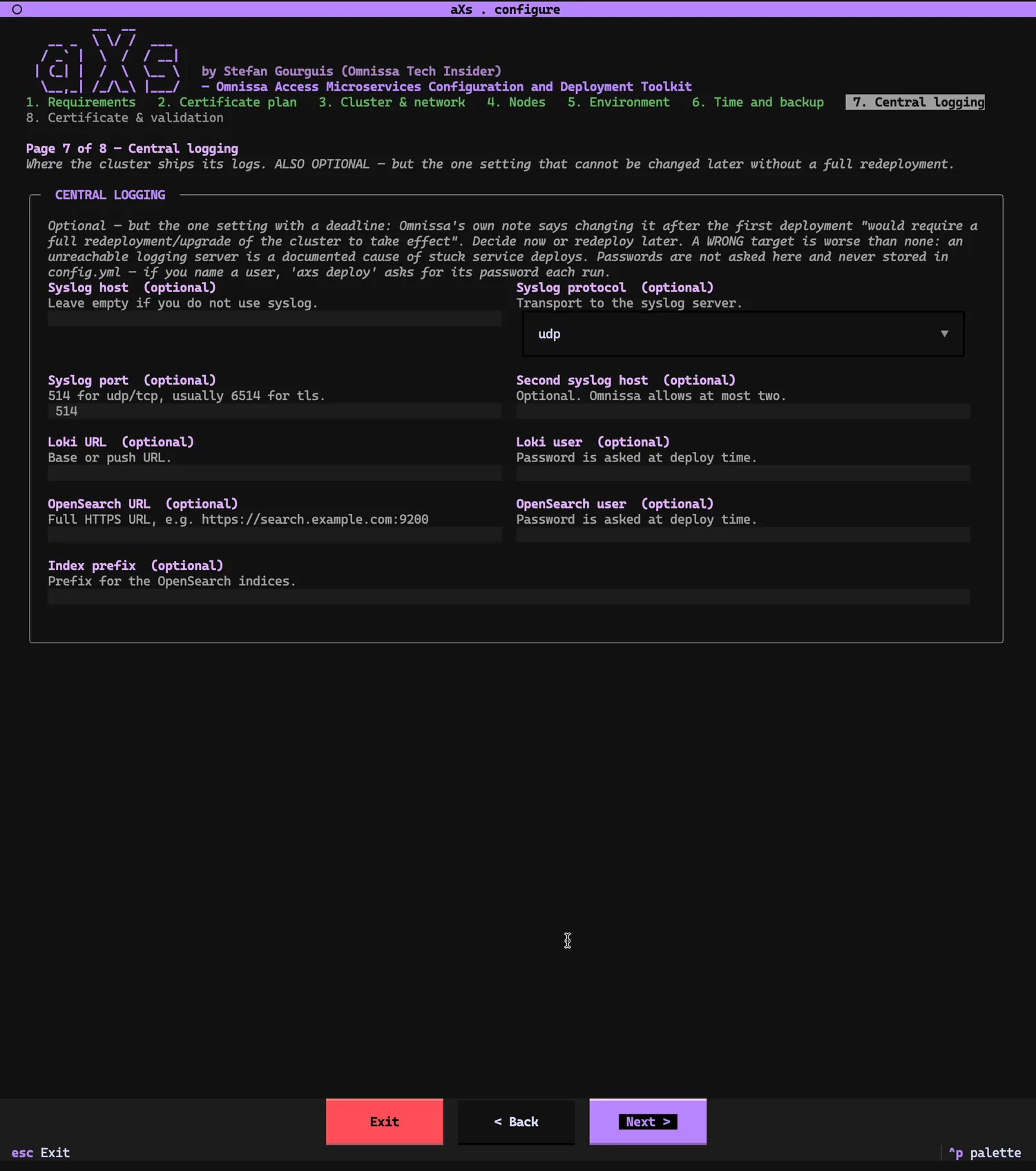
Also optional — but this is the one setting with a deadline. Omnissa’s note, quoted on the page: changing central logging after the first deployment “would require a full redeployment/upgrade of the cluster to take effect”. Decide now or redeploy later. And a wrong target is worse than none: an unreachable logging server is a documented cause of stuck service deploys. Syslog (at most two hosts), Loki, or OpenSearch; passwords are asked at deploy time, never stored in config.yml.
The last page opens your real PFX and reads the truth from it: CN and SANs are displayed, you confirm which tenant/domain pair the certificate stands for, and you pick the TLS topology at the load balancer — termination (LB holds the real cert, appliances stay self-signed) or passthrough (LB passes TLS through, aXs places cert and key from this PFX on the appliances). Because I answered yes to certificate-based auth and Mobile SSO, the checker also demands the access-cert and access-amsso SANs — the wildcard covers them. Then everything is validated together: hostnames and IPs against each other, every FQDN against the certificate, vCenter reachability on port 443, and DNS for the tenant name against the LB VIP. Only after “All checks passed” does the green button write clusters/lab/config.yml.
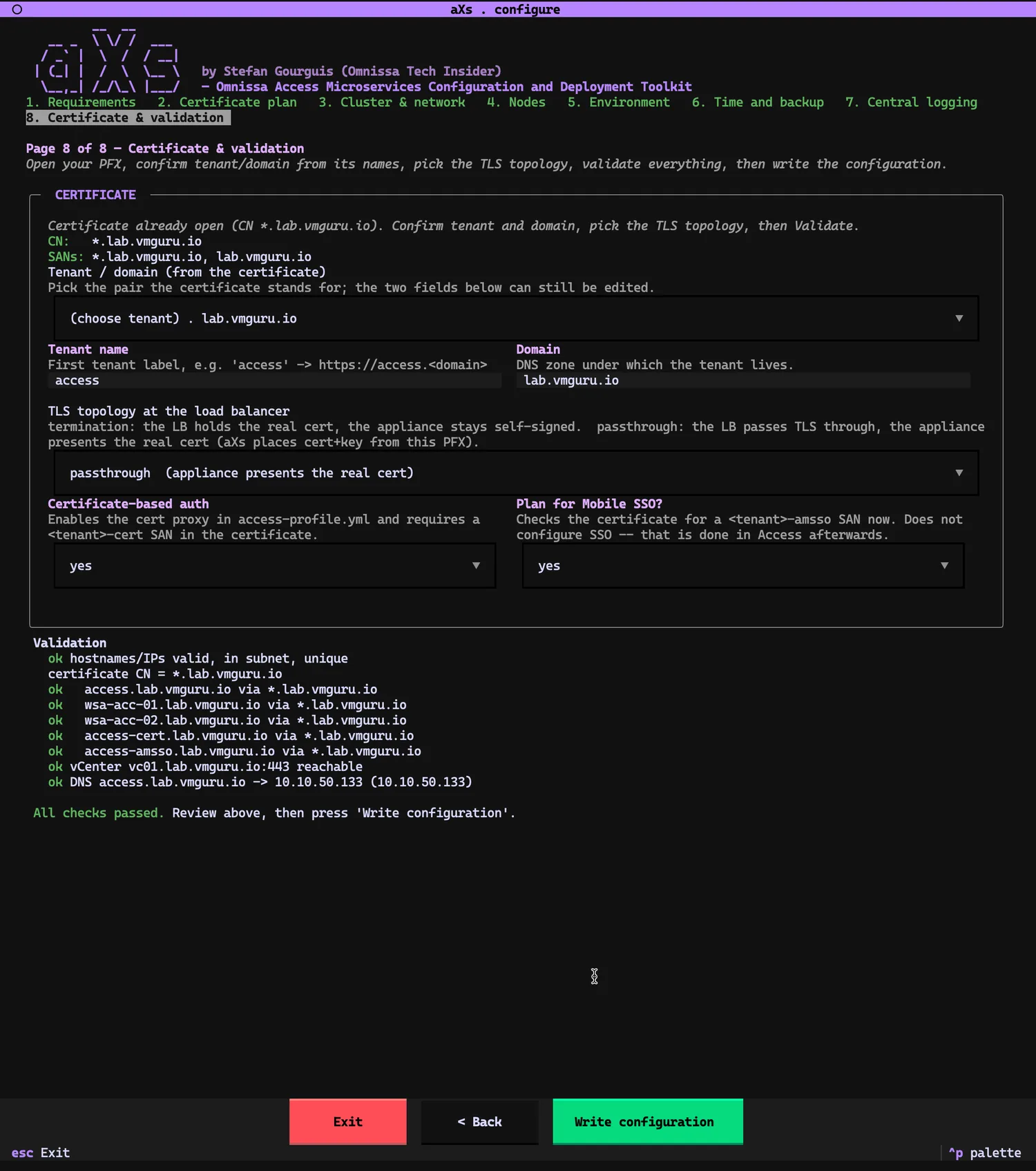
If you edit config.yml by hand later, ./axs validate -c lab re-runs the static checks from the command line, no network, no dialog.
axs deploy: two passwords, then walk away./axs deploy -c lab
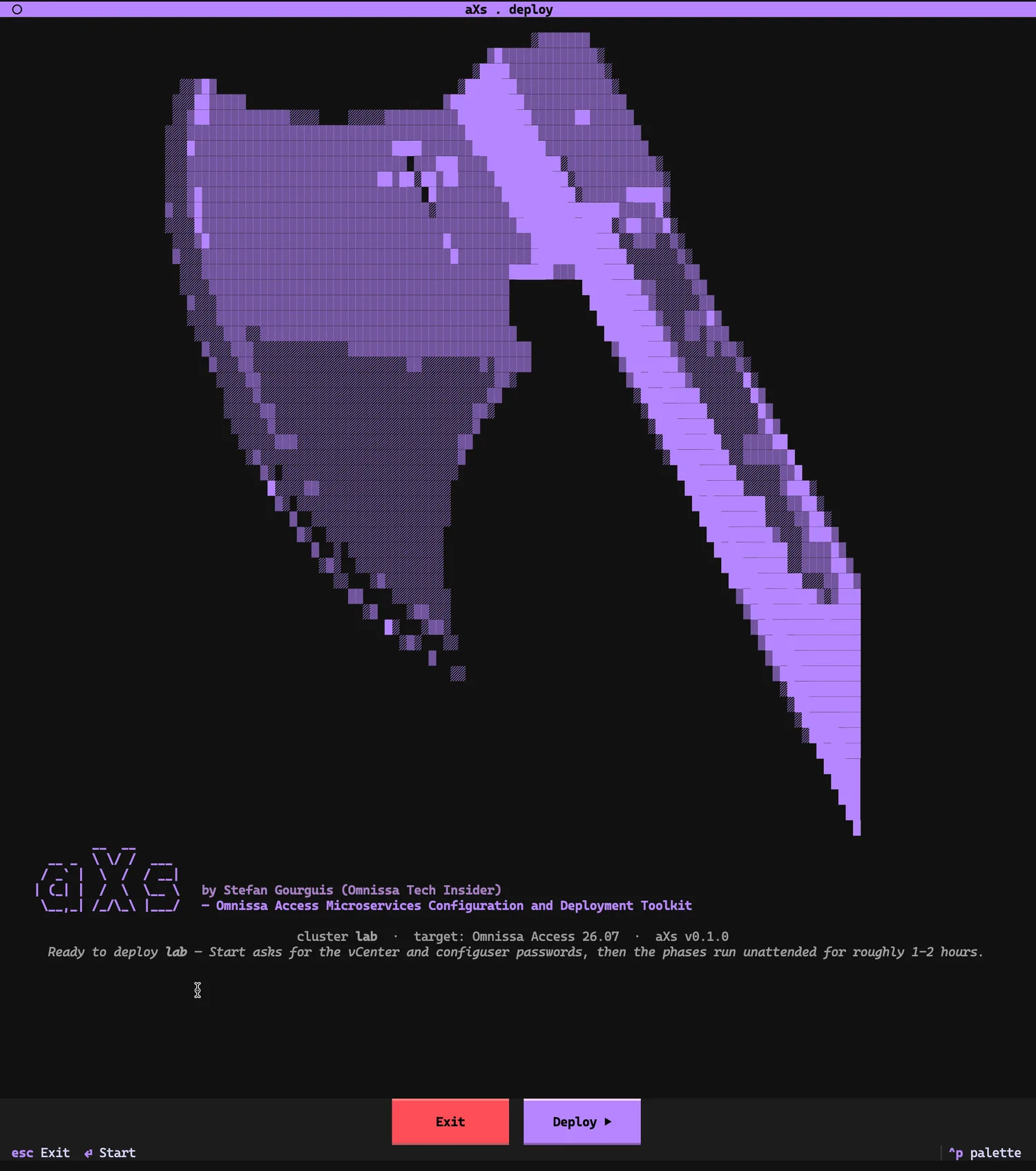
The deploy splash finds the config from part 1 and states the deal: Start asks for the vCenter and configuser passwords, then the phases run unattended for roughly one to two hours.
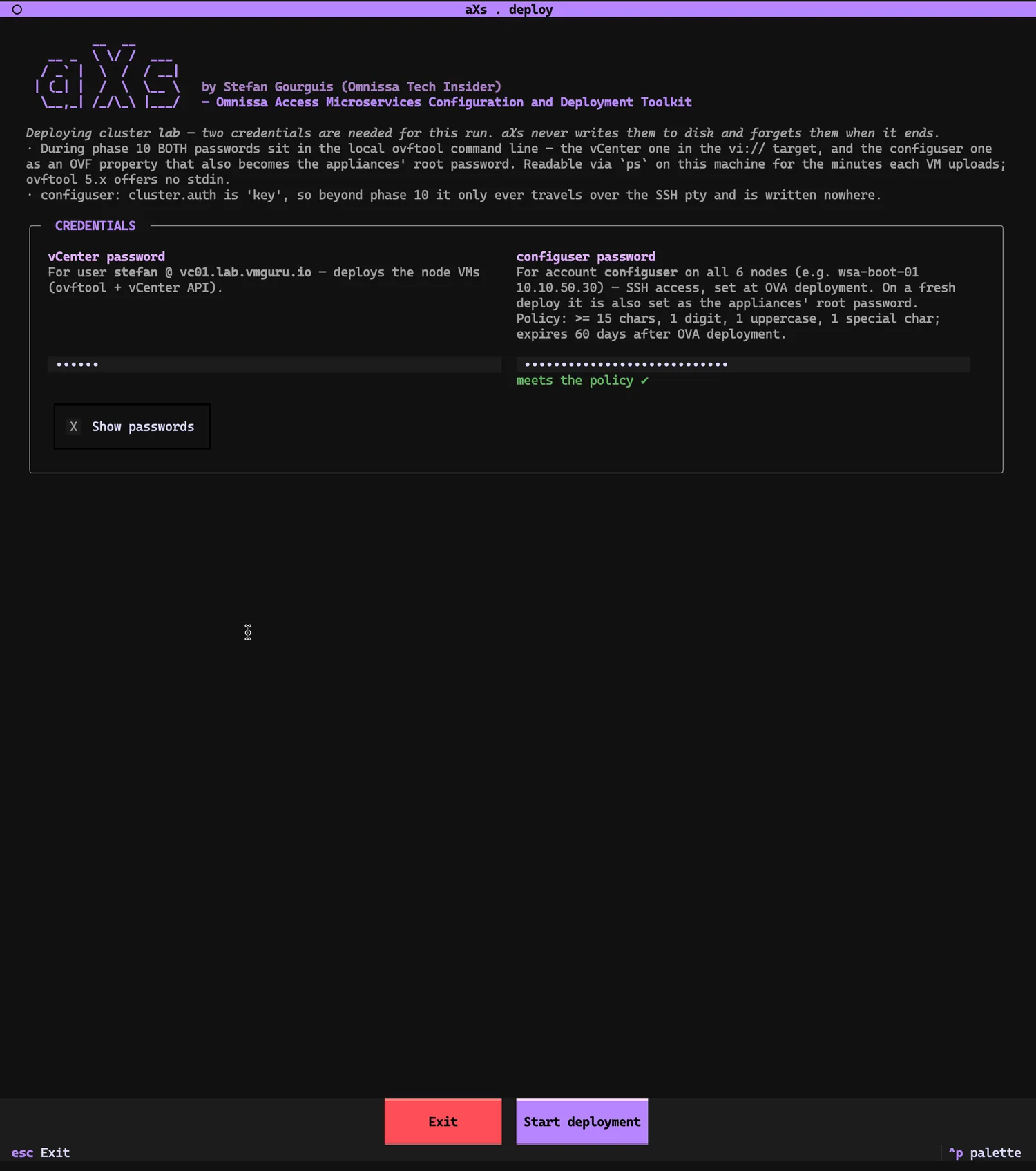
The credentials screen is unusually honest for a deployment tool. It tells you exactly where the two passwords travel: during phase 10 both sit on the local ovftool command line (ovftool 5.x offers no stdin — readable via ps on this machine for the minutes each VM uploads), and the configuser password is set as an OVF property that also becomes the appliances’ root password. Because cluster.auth is key, beyond phase 10 the configuser password only ever travels over the SSH pty and is written nowhere. The policy is enforced as you type — at least 15 characters, a digit, an uppercase letter, a special character — with a live “meets the policy” check, because finding out at minute 40 would be unpleasant.
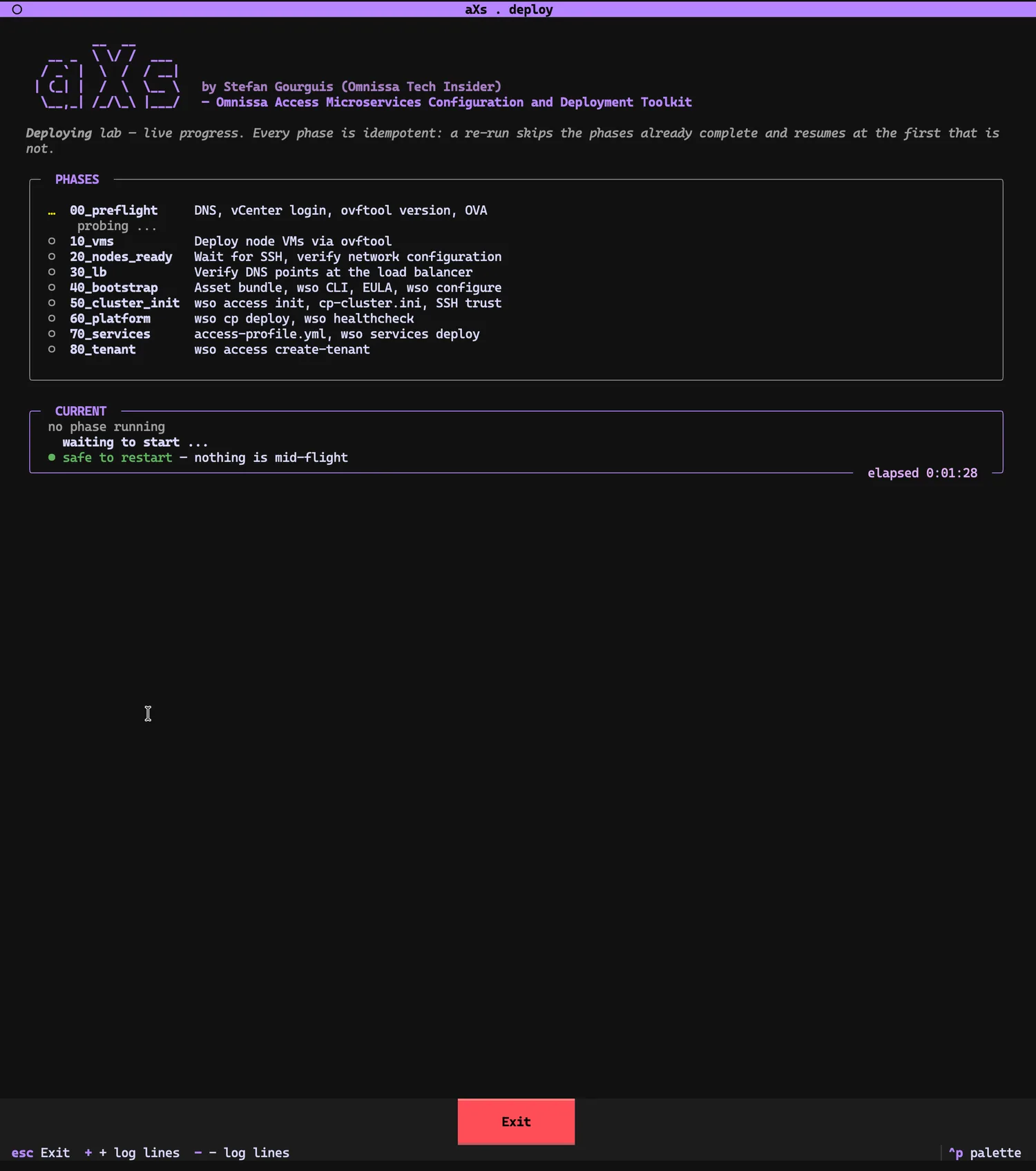
Start deployment, and the board appears: nine phases with a one-line description each, a CURRENT box with a live phase timer, and a restart-safety indicator. The whole board is a statement about idempotency — every phase has its own done-probe, and a re-run skips what is already complete.
Phase 10 uploads the six node VMs via ovftool, a few minutes per VM, with the disk progress streaming in the live log. Note the indicator flipping to red: do NOT restart now — an ovftool upload is in flight. Aborting mid-upload can leave a half-deployed VM; the board tells you when a Ctrl-C is free and when it is not. Also visible: 30_lb has already run its advisory DNS check against the LB while the VMs are still uploading — the dependency graph is not a straight line.
![Phase board during 10_vms: preflight done, 10_vms deploying node VMs via ovftool, CURRENT shows '[0/6 up] wsa-boot-01: uploading 21%' with a red 'do NOT restart now — an ovftool upload is in flight' warning. The live log shows ovftool disk progress percentages climbing.](/images/axs-guide/step-14.webp)
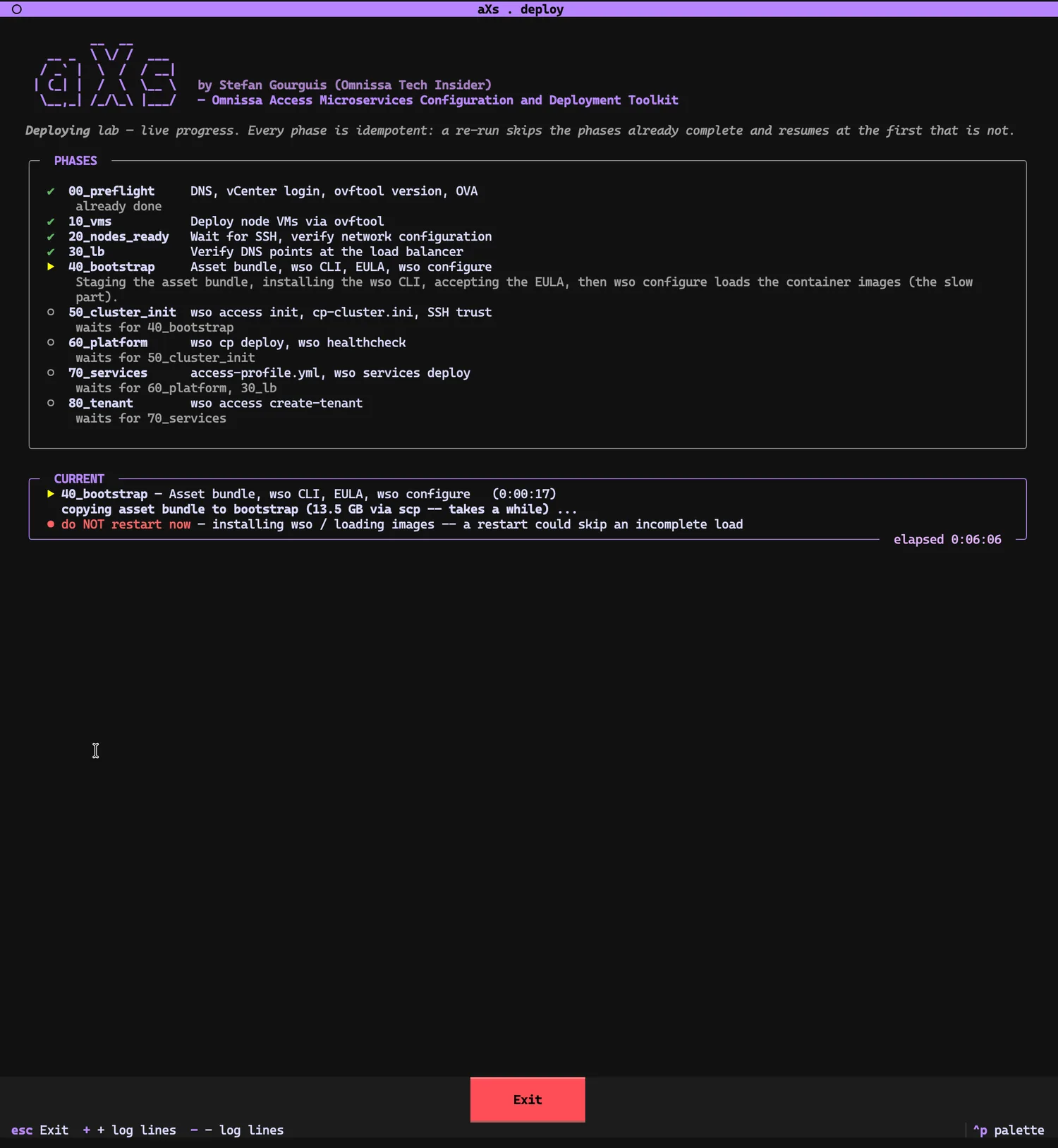
Phase 40 stages the 13.5 GB asset bundle to the bootstrap via scp, installs the wso CLI, accepts the EULA, and runs wso configure, which loads the container images — the slow part. Red again, for a different reason: a restart here could skip an incomplete image load.
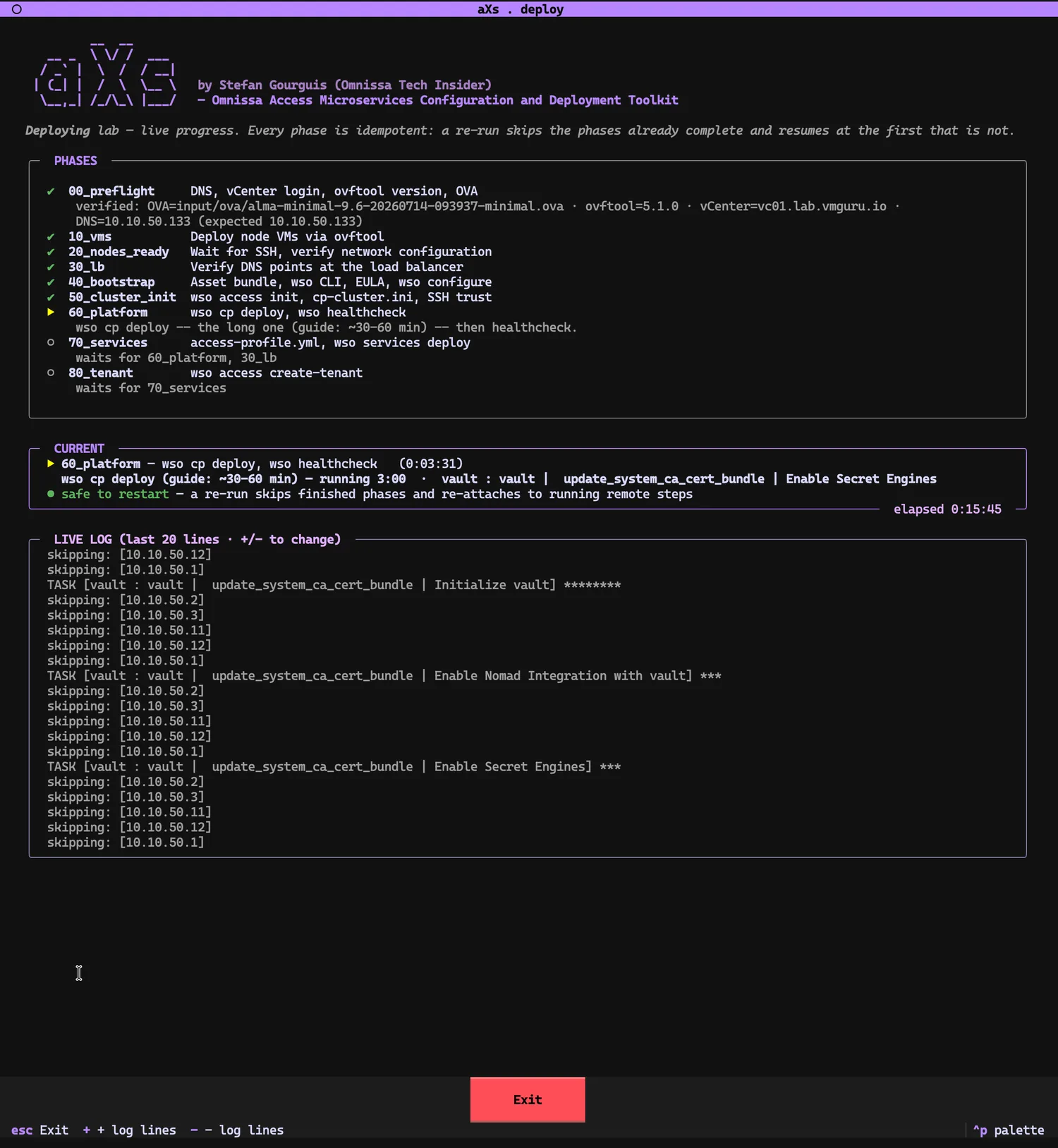
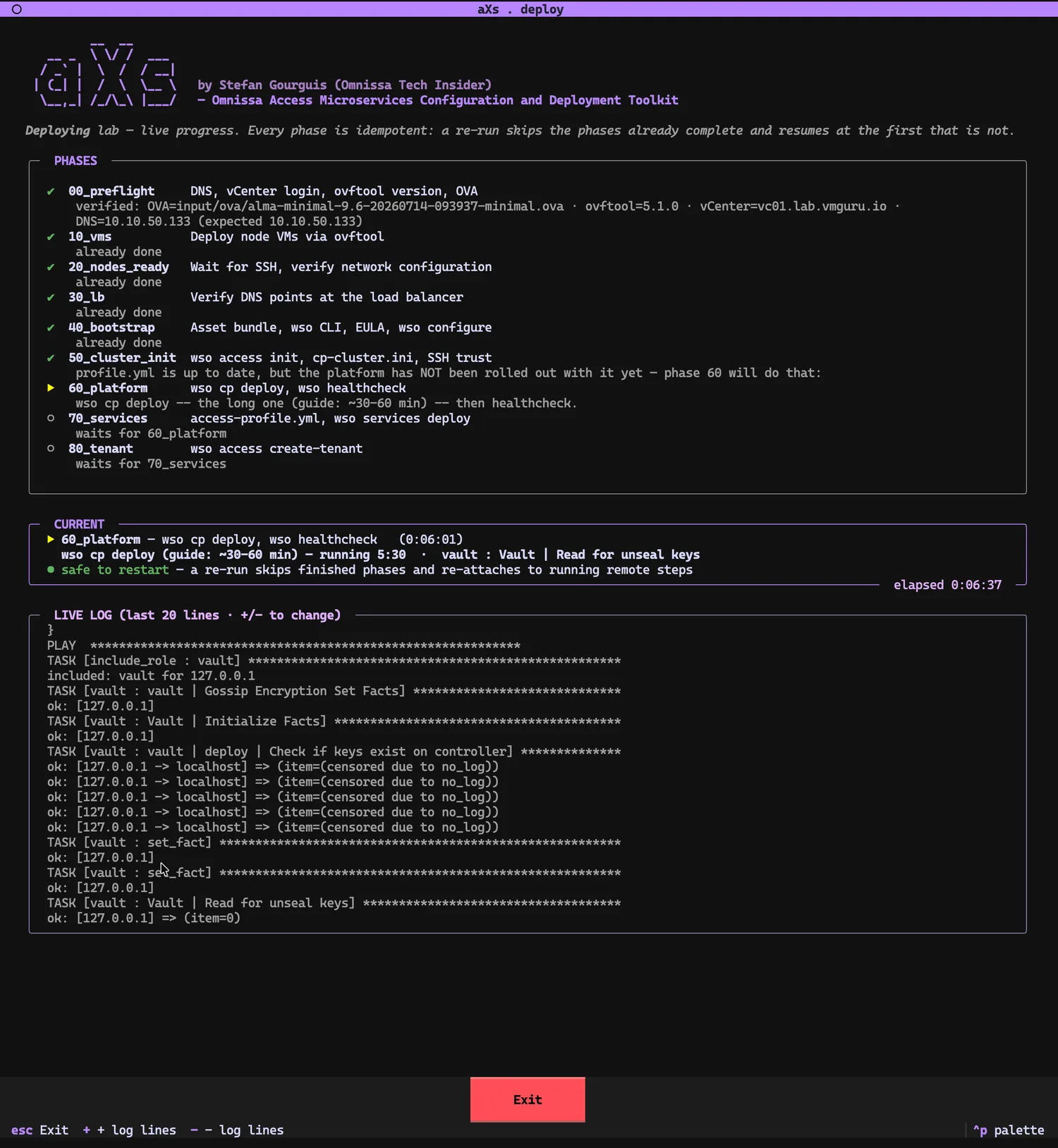
Phase 60 is the long one — wso cp deploy, the guide says 30–60 minutes — raising Nomad, Consul, Vault, PostgreSQL, Redis, Kafka and OpenSearch across the platform tier. The live log is the vendor’s own Ansible output, streamed as-is; here it is working through the Vault roles. The indicator is green again: a re-run would skip finished phases and re-attach to the running remote step.
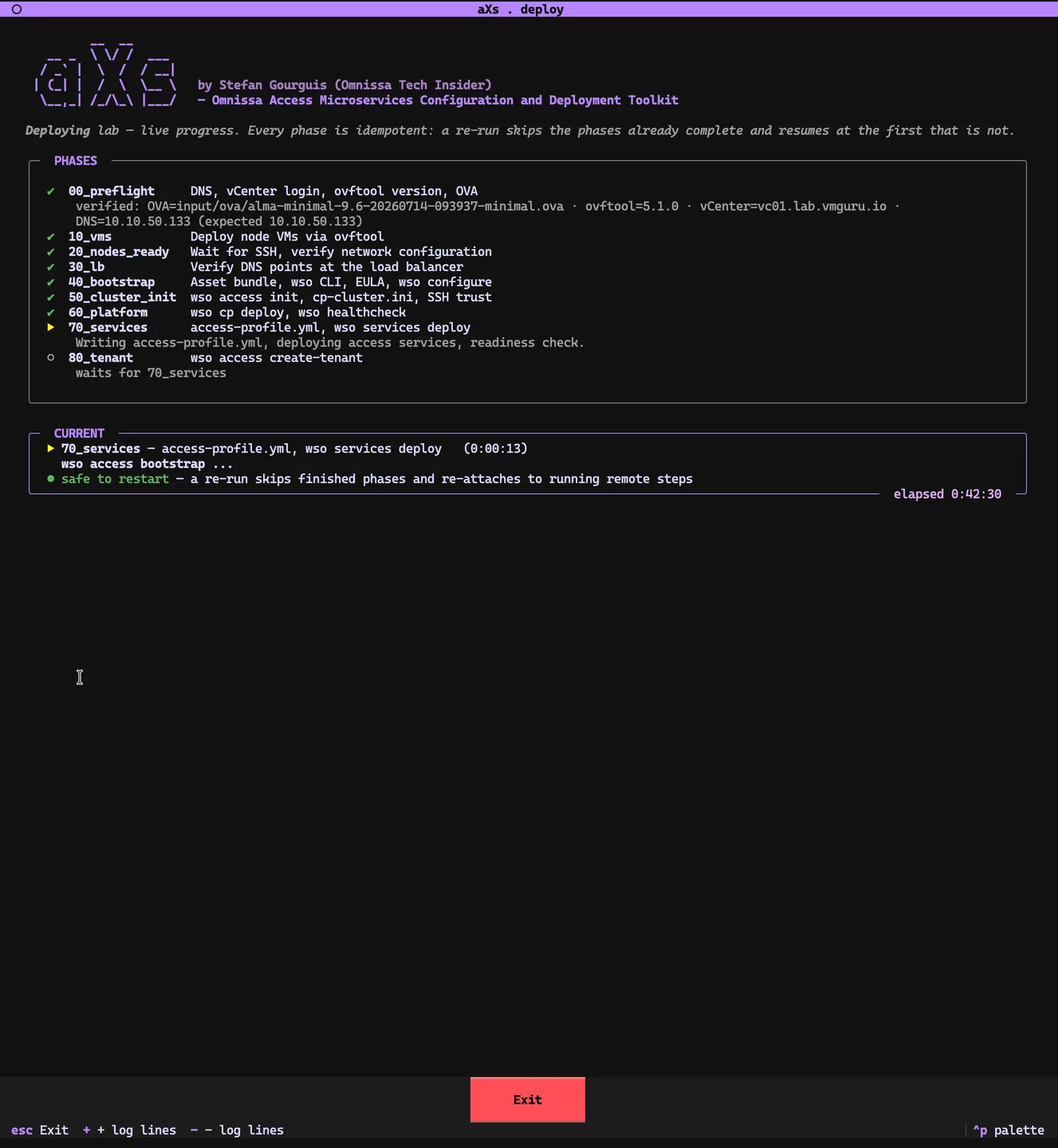
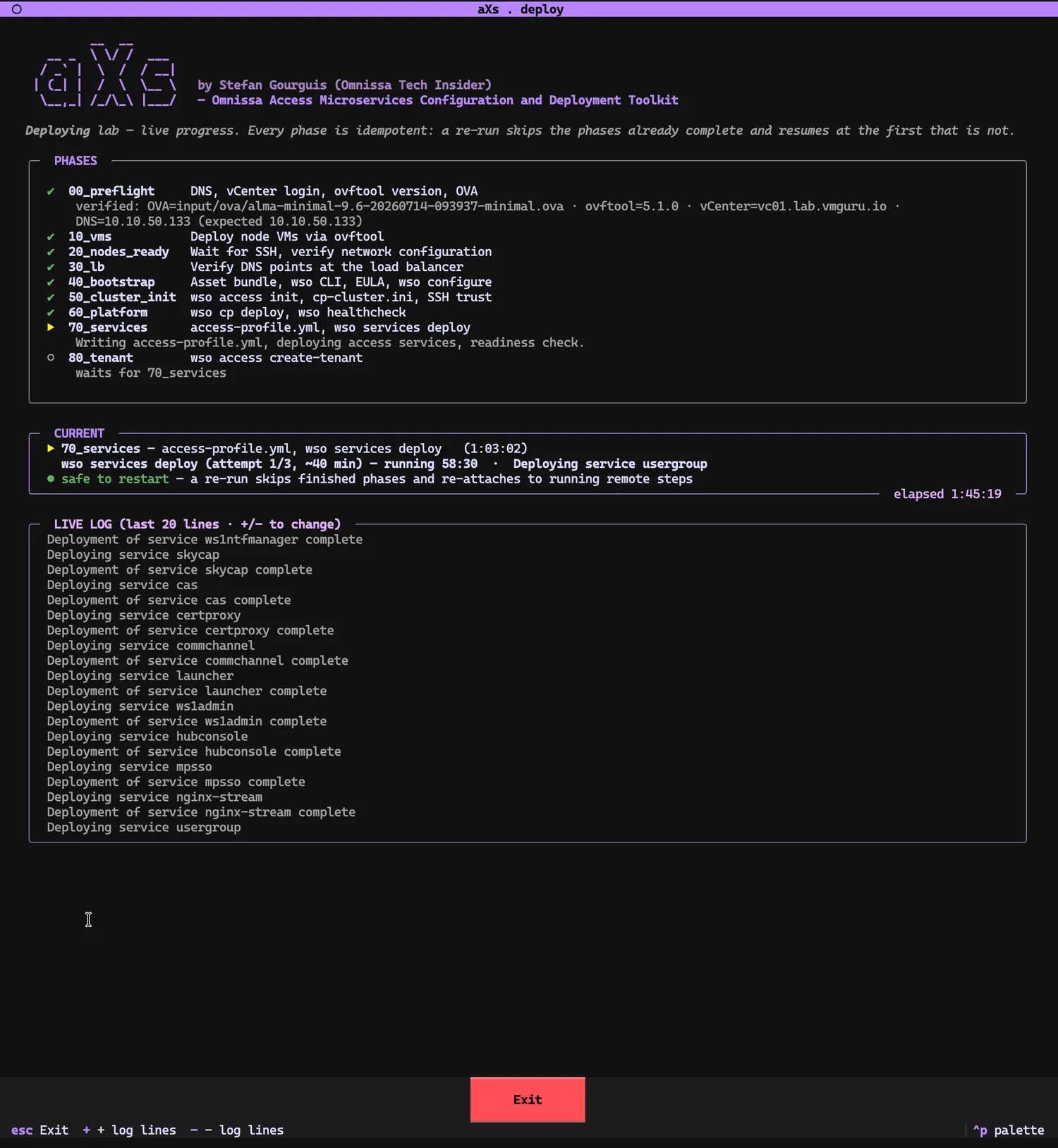
wso cp deploy raises the platform tier. The live log is the vendor's Ansible, unfiltered.Phase 70 writes access-profile.yml (this is where the LB IP and the certificate from the PFX are placed) and runs wso services deploy — roughly 40 minutes of Access microservices being deployed one after another. Two snapshots: the phase just starting at overall 0:42, and deep inside at 58 minutes into the phase, usergroup deploying, with skycap, cas, certproxy, commchannel, launcher, ws1admin, hubconsole, mpsso and nginx-stream already complete in the log.
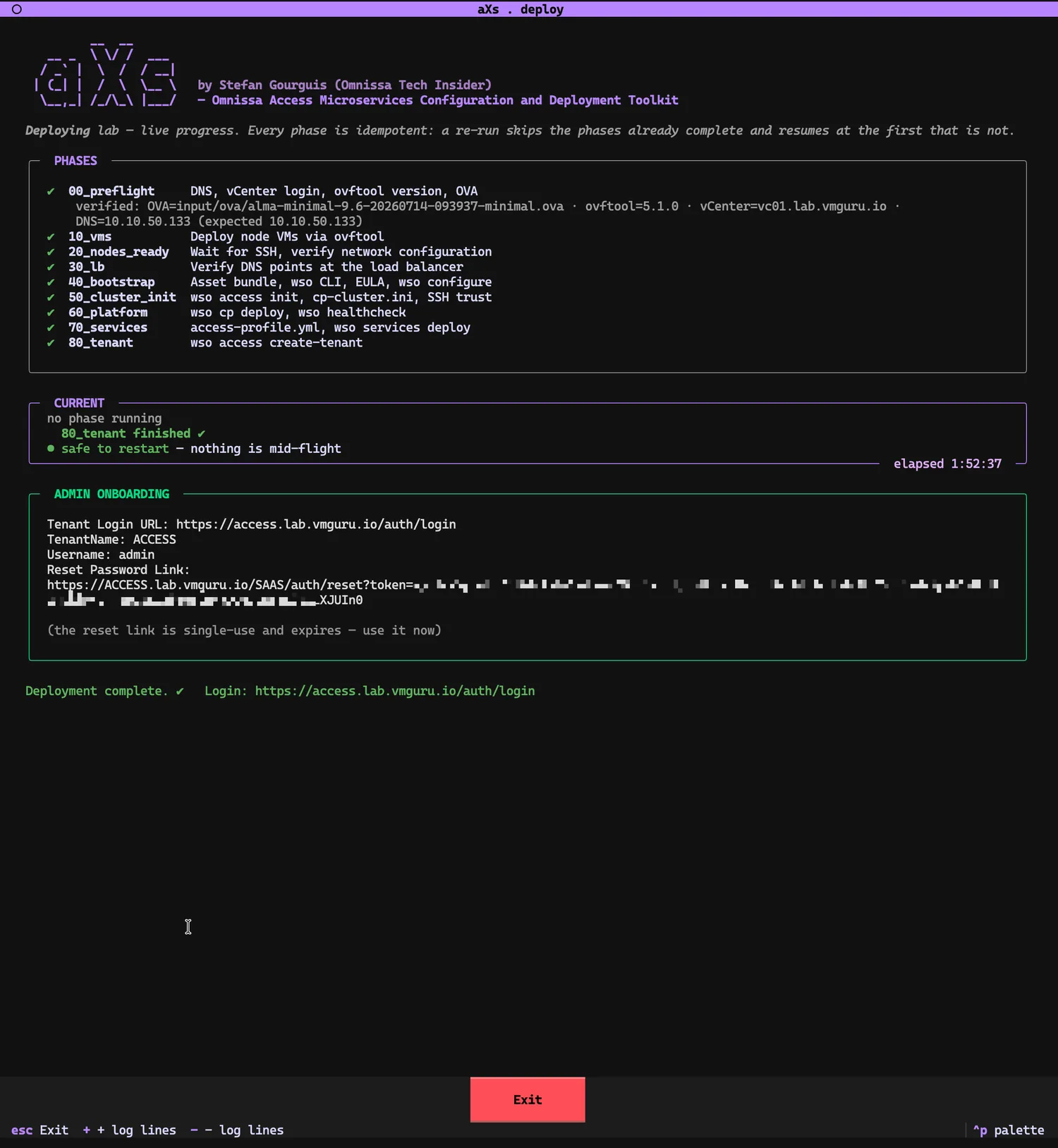
Then phase 80 creates the tenant, and the board turns entirely green: elapsed 1:52:37 in this run. The ADMIN ONBOARDING box holds the three things you need for first contact: the tenant login URL, the admin username, and the reset-password link — the only way to set the first admin password. It is single-use, it expires, and it is deliberately never written to deploy.log. Use it now.
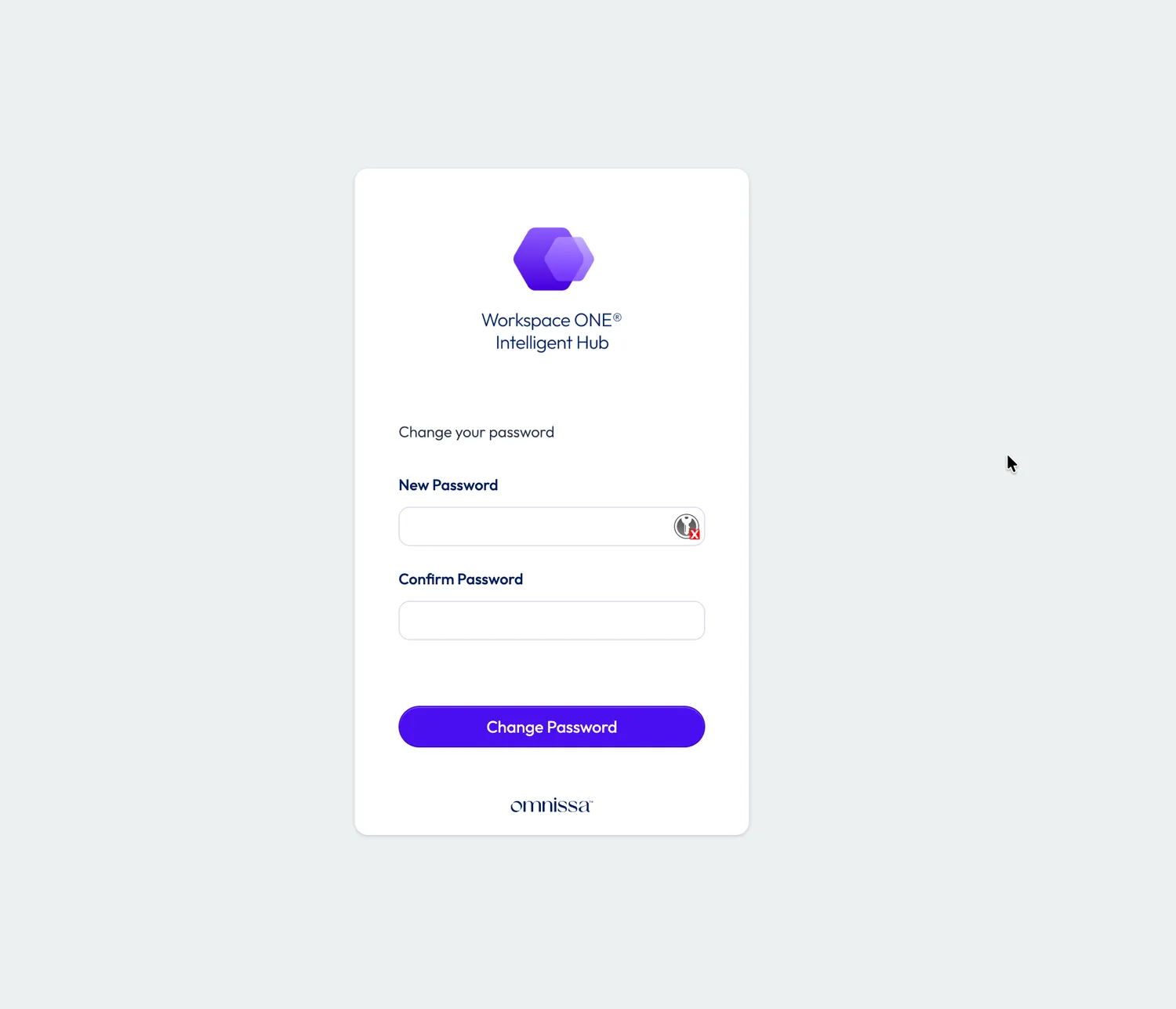
The reset link lands on the Workspace ONE Intelligent Hub password page — this is where the admin password is set for the first time, which is why it never had to exist in any configuration file.
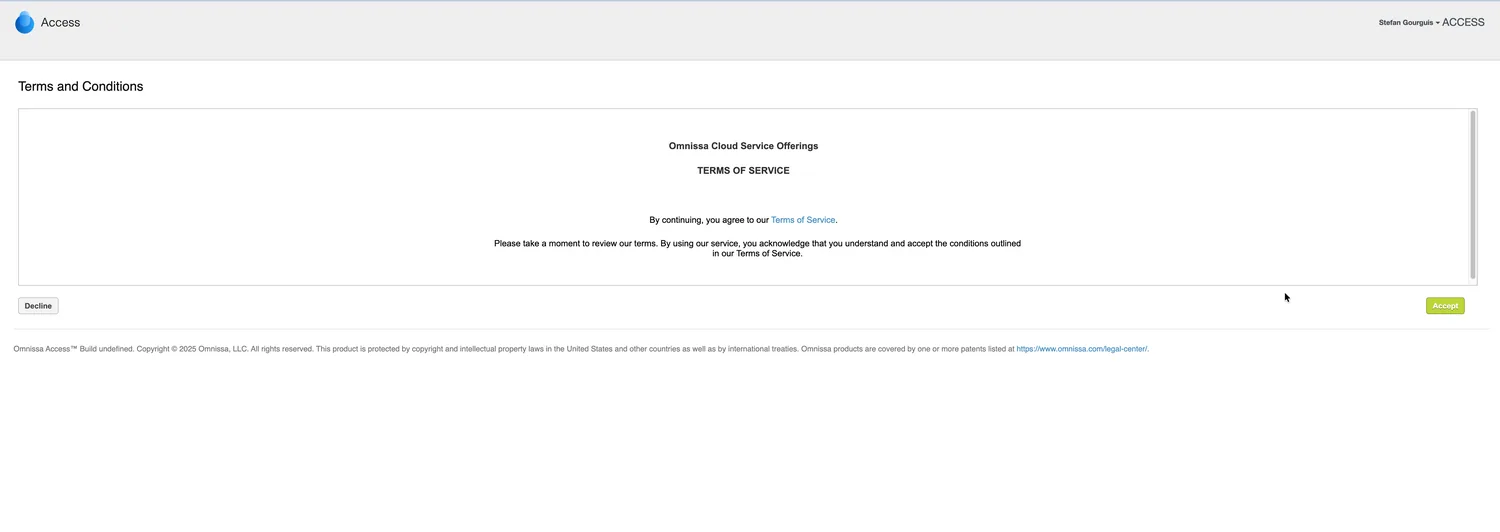
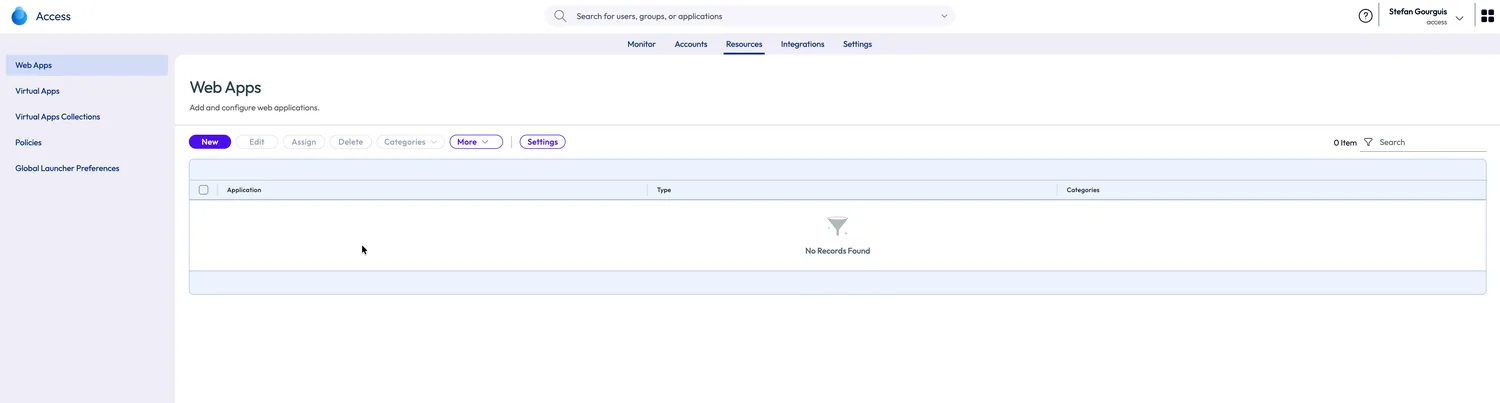
First login into the console: accept the Omnissa terms of service, and you are standing in a factory-fresh Access tenant — Resources → Web Apps, no records found. Everything from here (directories, identity providers, apps, SSO) is regular Access administration, exactly as the product documentation describes it, because the environment aXs built is indistinguishable from one installed by hand from the guide.
Remember page 6? I left NTP and the NFS backup target empty. In most tools, that decision would now cost you a redeployment, or at least an undocumented SSH session into the bootstrap. Here is what it costs with aXs.
I re-opened the configuration and set the operational settings — NTP server and the NFS target — on the running cluster’s config. Then:
./axs status -c labstatus probes the live state of every phase, and it caught the drift precisely: everything DONE — except 50_cluster_init, now OPEN, with the reason spelled out: “config.yml and the bootstrap’s profile.yml disagree on 4 key(s). This phase will rewrite profile.yml and phase 60 will roll the change out.” Meanwhile the tenant is still confirmed alive: tenant created | https://access.lab.vmguru.io/auth/login -> HTTP 200.
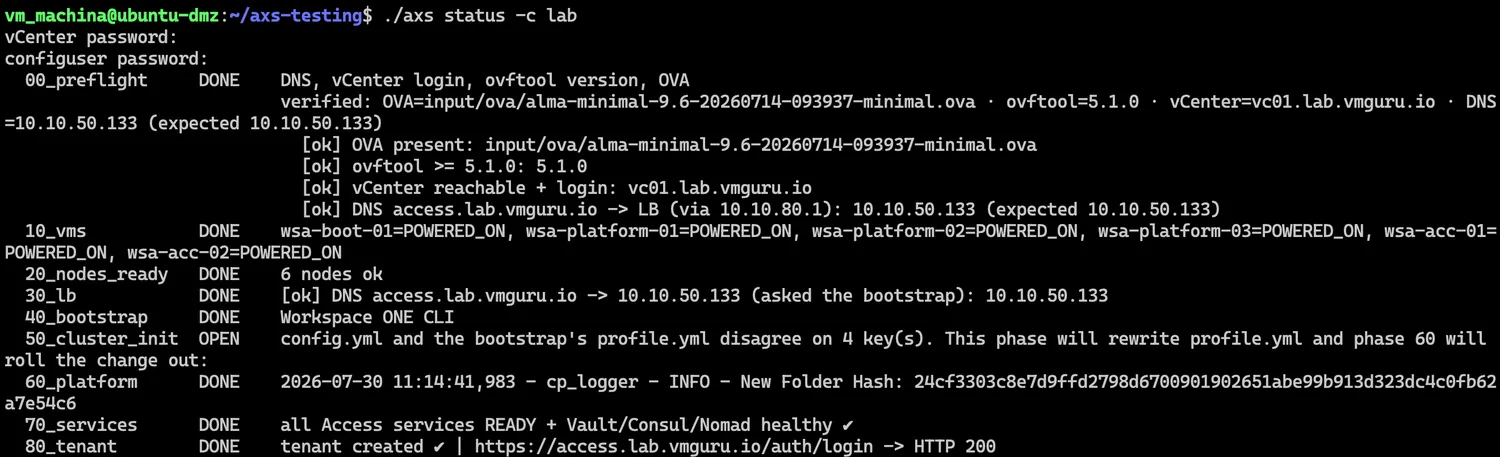
axs status detects the profile drift: four keys differ between config.yml and the bootstrap's profile.yml — and names exactly which phases will fix it.Then simply the same command as before — there is no special “reconfigure” mode:
./axs deploy -c labThe board makes the plan visible. Phases 00 through 40: already done, skipped in seconds. Phase 50 re-runs and rewrites profile.yml on the bootstrap, then reports: “profile.yml is up to date, but the platform has NOT been rolled out with it yet — phase 60 will do that:”. And phase 60 — wso cp deploy — runs again to apply it, exactly as it would in the vendor’s own procedure.
Twenty-two minutes later the board is green again. Look closely at what it says: 50_cluster_init still carries its explanation line, CURRENT reads “60_platform finished · safe to restart” at elapsed 0:21:57 — and 70_services and 80_tenant were never touched: already done. The services kept running on the untouched access tier; the tenant stayed reachable throughout.
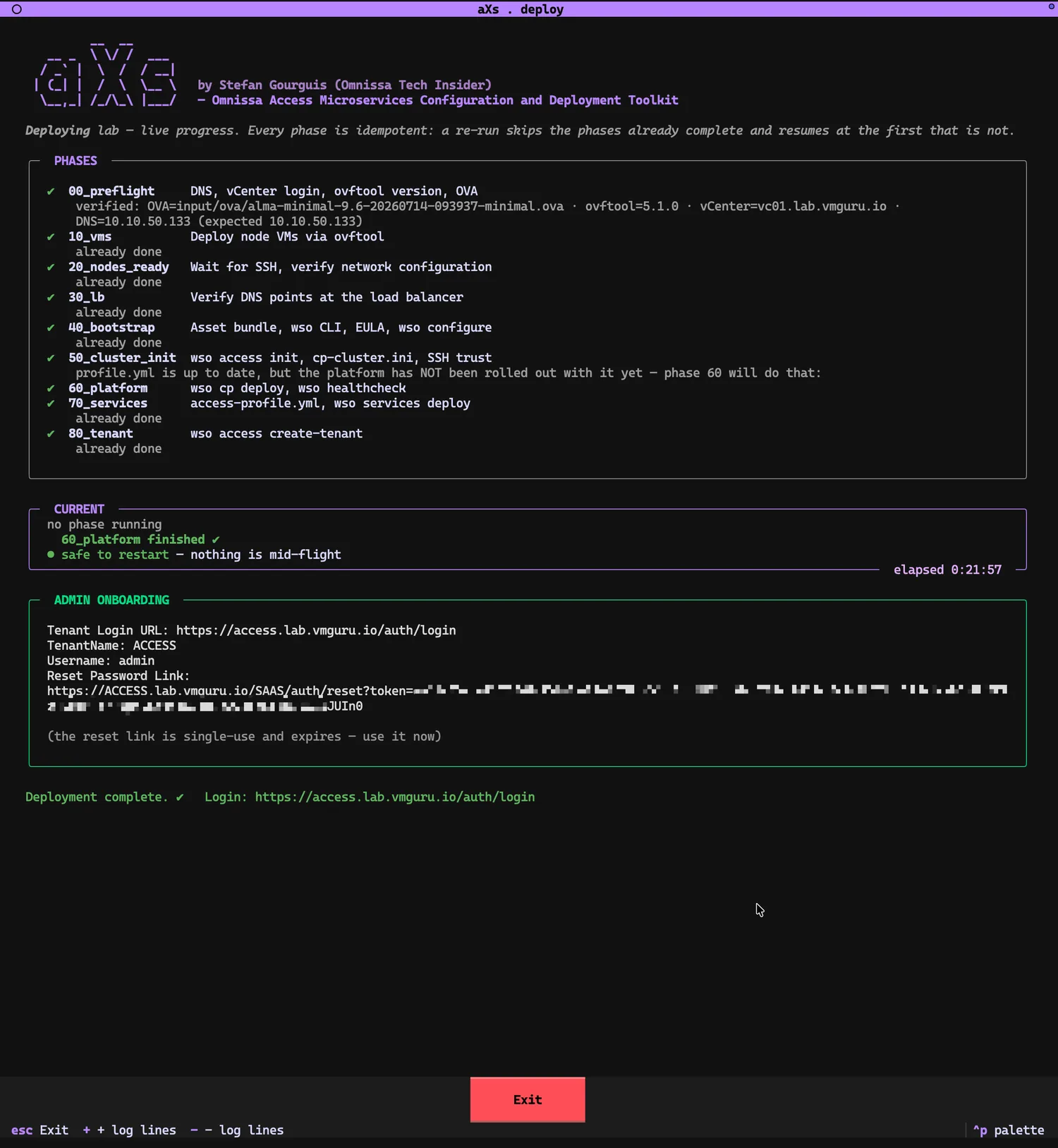
That is the property that makes this a tool rather than a script. deploy is not “install once” — it is converge on the configuration. The first run converges from nothing; every later run converges from wherever you are, and does only the work that is actually missing. A failed run resumes at the first incomplete phase. A config change re-runs exactly the phases that roll it out. The one exception is the one the dialog warned you about on page 7: central logging, which Omnissa says needs a full redeployment to change — which is precisely why it is the one page worth slowing down for.
aXs is free and open on GitHub, built and proven against Omnissa Access 26.07. It executes Omnissa’s documented procedure — same commands, same files, same order — so the vendor’s upgrade and patch paths apply to the result unchanged. If you want to watch the two halves of this article as video instead: Part 1, configure and Part 2, deploy.
Questions, or an Access 26.07 migration on your desk? stefan@solvig.ch.